
SW City
Download
Ready to play SW City? If you’ve ever played Roblox, you’ll be familiar with games that run on someone else’s app.
You can find SW City on 3 different apps—pick the one that works best for you!
Getting started takes just 3 quick steps: decide which app to use below, follow the matching instructions to download and install it, and then load in SW City.
That’s it! Download and jump in!
STEP 1
Choose Your App
Virtual Paradise
Modern controls & better FPS- Windows, Linux, and macOS
- Multiplayer
- Quests and NPC interaction
- Crossplay with other versions
- Dynamic cloud, water, and special effects (partially implemented)
- Environmental effect zones
- 600m max viewable distance
- Low-end PC friendly
- Native WASD movement controls
- Remap keyboard controls
- Controller support
DeltaWorlds
The definitive experience- Supports Microsoft Windows
- Multiplayer
- Quests and NPC interaction
- Crossplay with other versions
- Dynamic cloud, water, and special effects
- Environmental effect zones
- 200m max viewable distance
- Low-end PC friendly
- Arrow key movement controls
- Remap keyboard controls
- Controller support
Activeworlds
The original! No longer maintained- Supports Microsoft Windows
- Multiplayer
- Quests and NPC interaction
- Crossplay with other versions
- Dynamic cloud, water, and special effects
- Environmental effect zones
- 200m max viewable distance
- Low-end PC friendly
- Arrow key movement controls
- Remap keyboard controls
- Controller support
STEP 2
Install the App
Click your preferred app below and follow the setup instructions.
Virtual Paradise
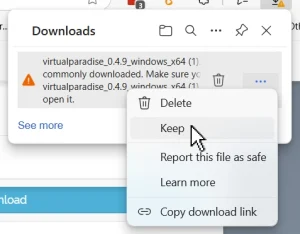
NOTE: If you are warned that the setup file isn’t commonly downloaded, choose to keep the file. The file is safe. |
 |
| 2. Run the setup file and follow the instructions. | |
|
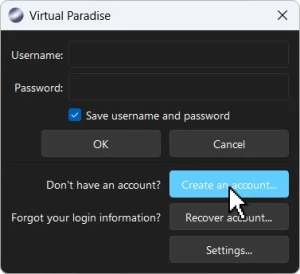
3. Open the app and click the Create an account… button. Follow the instructions. Once you have your account setup, log in with your username and password. |
 |
DeltaWorlds
|
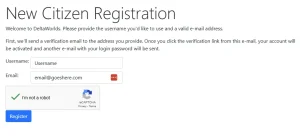
1. Go to the Deltaworlds account creation page and register your citizen account. Type in your desired username and password, solve the CAPTCHA, then click Register. Your account information, including an auto-generated password, will be emailed to you. Later on you will be able to change the password. |
 |
| 2. Download Deltaworlds from the Deltaworlds download page. | |
|
3. Run the setup file and follow the instructions. NOTE: If Windows asks you whether you want this app from an unknown publisher to make changes to your device, click Yes. |
|
|
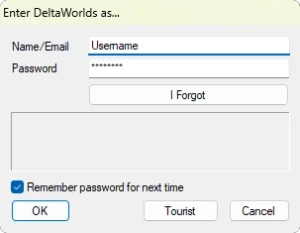
4. Open the app and type in the username and password that were emailed to you in Step 1. Then click OK to login. PRO TIP: Be sure to check the box next to “Remember password for next time”. |
 |
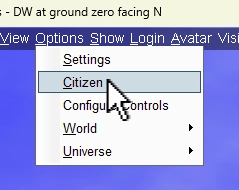
| OPTIONAL: Change Your Password 5. Go to the Options Menu > Citizen. |
 |
|
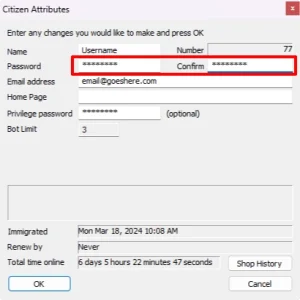
6. In the Password box, type in your new password. Then, in the Confirm box, type your new password in again. Click OK. You have now changed your password. |
 |
Activeworlds
|
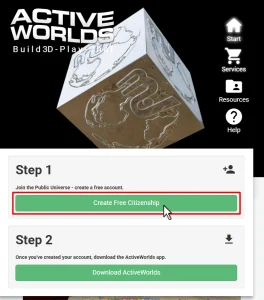
1. Go to the Activeworlds homepage to register your citizen account. Click the Start icon on the top right of the page, then click on the Create Free Citizenship button. Follow the instructions and fill out all the information. Then click Continue. The next screen will ask you to review the information you submitted. Click Submit. A confirmation email will be sent to the email address you entered. |
 |
|
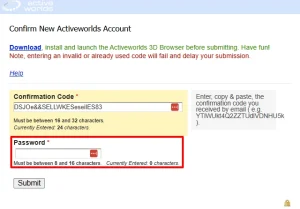
2. Open the email you received from ActiveWorlds and click on the confirmation code. Type the password you registered with into the Password box. Then click Submit. Your account has now been created. |
 |
|
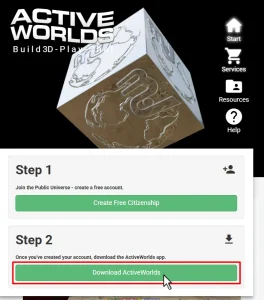
3. Return to the Activeworlds homepage to download the Activeworlds app. Click the Start icon on the top right of the page, then click on the Download Activeworlds button. |
 |
|
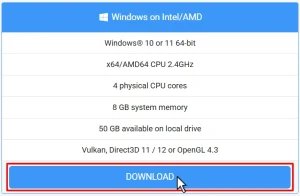
4. On the next page, go to the Windows on AMD/Intel column and click the Download button there. Scroll to the bottom of the User Consent Form and click Next. You will be asked to download the app. Save it to the location of your choice on your computer. |
 |
| 5. Run the setup file and follow the instructions. | |
|
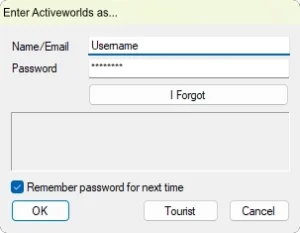
6. Open the app and type in the username and password that were emailed to you in Step 1. Then click OK to login. PRO TIP: Be sure to check the box next to “Remember password for next time”. |
 |
STEP 3
Visit SW City
Each app requires slightly different directions to reach SW City, so click on the app you installed!
Virtual Paradise
| 1. Open the app and log in with your username and password. | 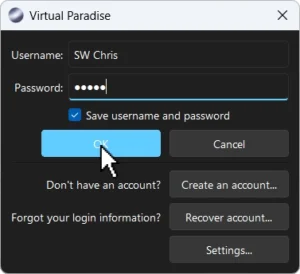 |
|
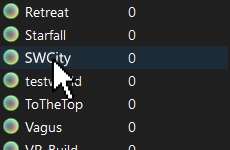
2. You’ll see a world list to your left. Click SWCity to begin your adventure! Pro-Tip: Before you click, make sure you read the sign right in front of you to familiarize yourself with Virtual Paradise’s controls! |
 |
|
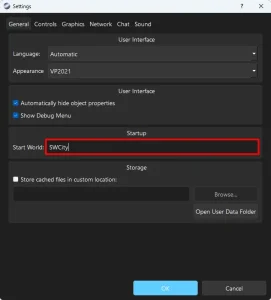
OPTIONAL: Make SW City Your Start World On the window that pops up, go to the Start World text box and type in SW City. Press OK. Now you will start in SW City whenever you open Virtual Paradise. |
 |
DeltaWorlds
|
1. Open the app and log in with your username and password. PRO TIP: Be sure to check the box next to “Remember password for next time”. |
|
|
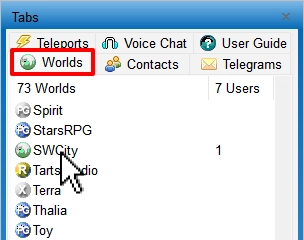
2. After logging in, hold your mouse over the Tabs icon. It will slide out into view and you’ll see a world list to your left. Make sure the Worlds tab is active, then scroll down and click SWCity to begin your adventure! |
 |
|
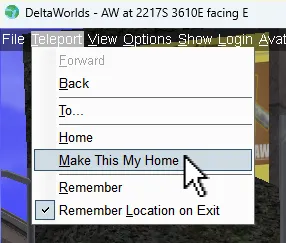
OPTIONAL: Make This Your Home Next time you open DeltaWorlds, you will appear in SW City. |
 |
Activeworlds
|
1. Open the app and log in with your username and password. PRO TIP: Be sure to check the box next to “Remember password for next time”. |
|
| 7. Now we need to teleport to SW City. You’ll see a menu at the top left. Click on the Teleport Menu > To… | 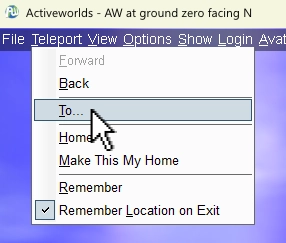 |
|
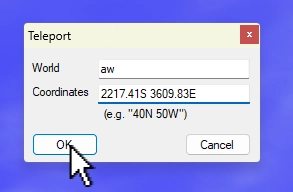
8. Type in the following text into each respective box. World: aw Click OK. This will teleport you to SW City. Welcome! |
 |
|
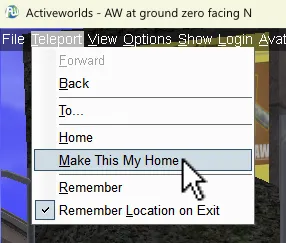
OPTIONAL: Make This Your Home Next time you open Activeworlds, you will appear in SW City. |
 |
JOIN THE COMMUNITY
Sign up to our email list and be the first to know about content releases and news.